
Sandi’s List 4.0
The Ultimate Book Manager & Reading Tracker for Serious Collectors

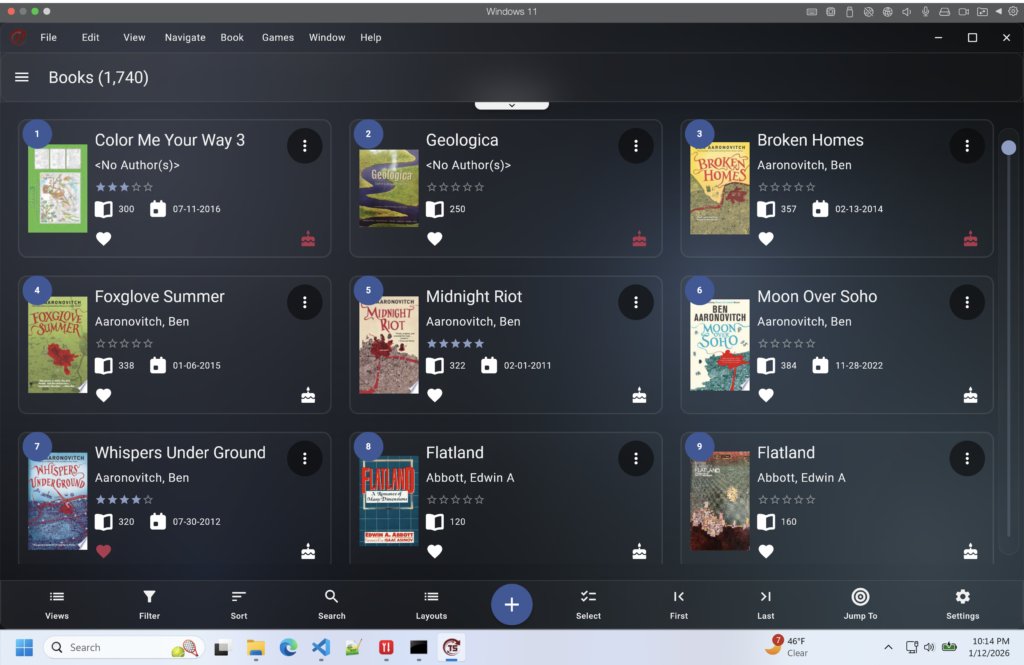
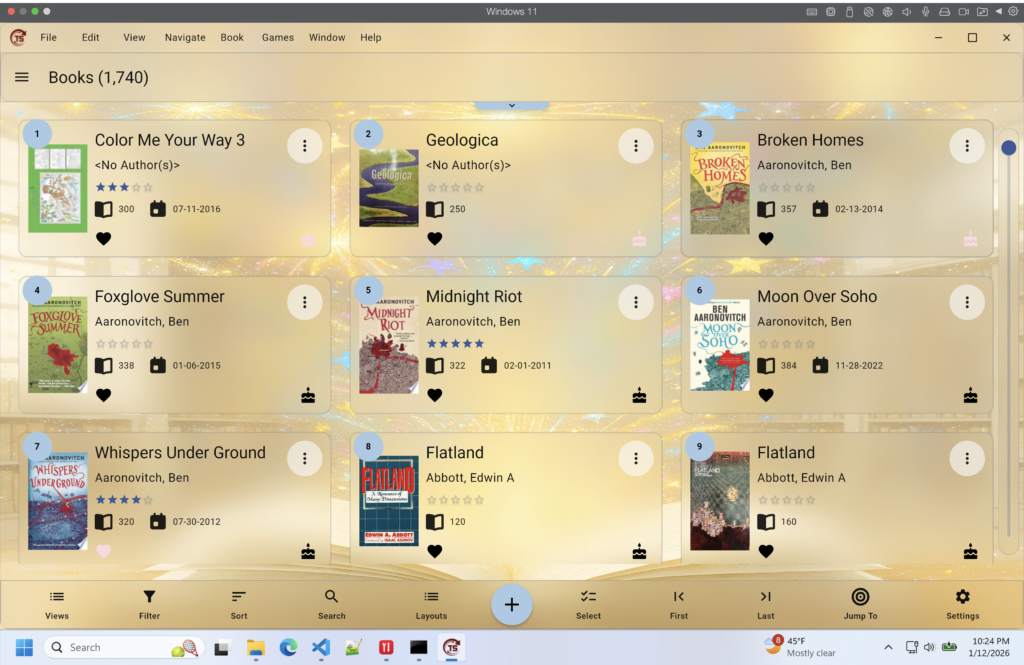
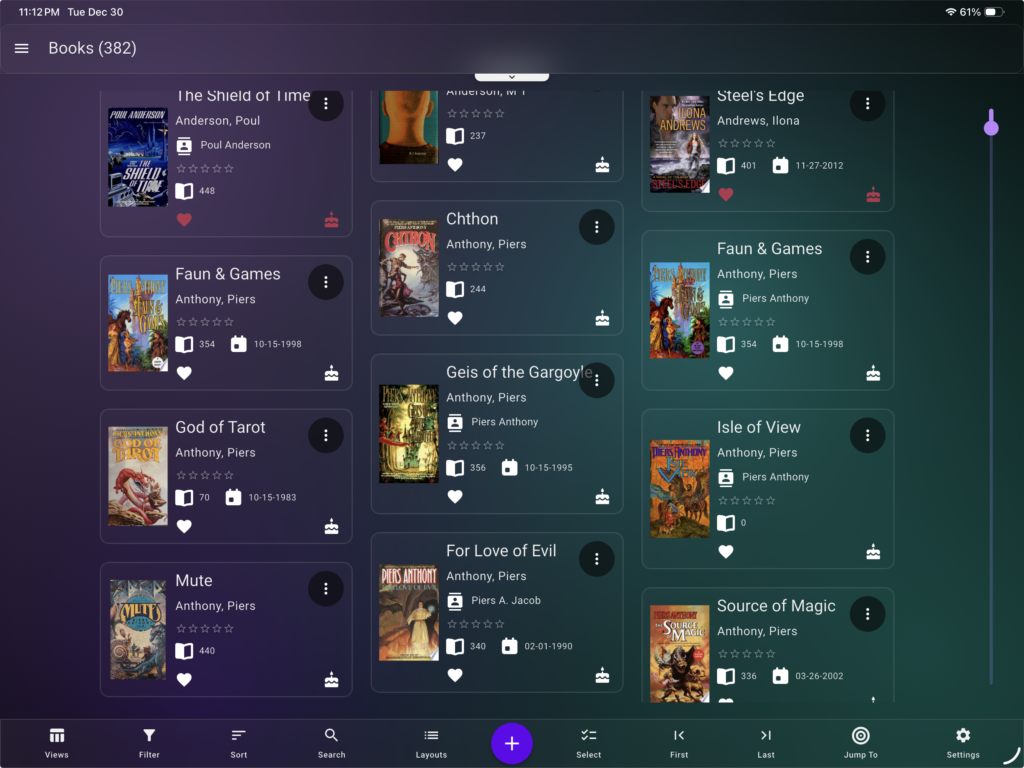
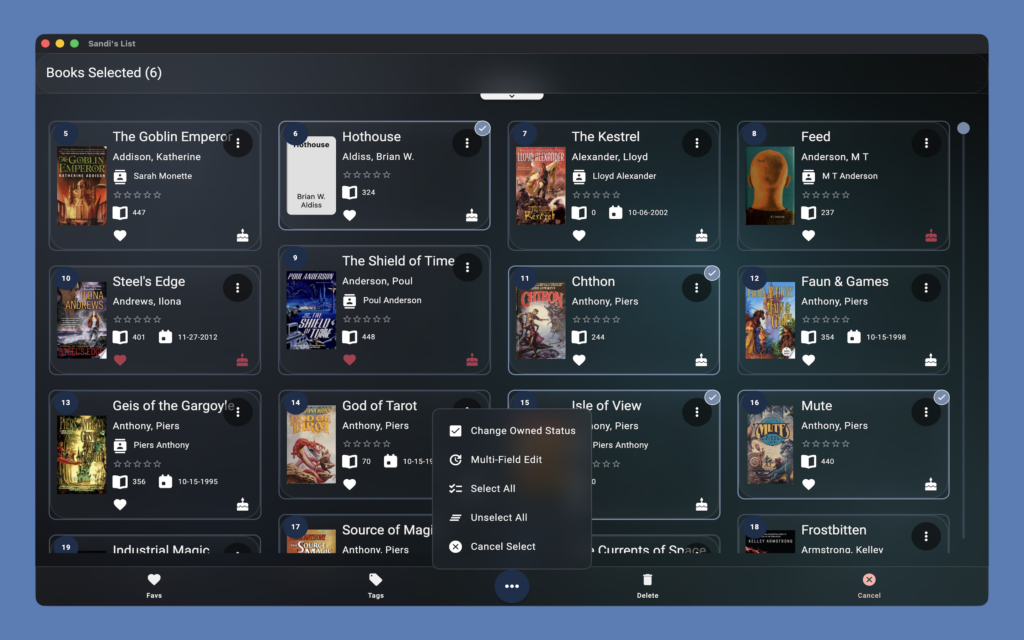
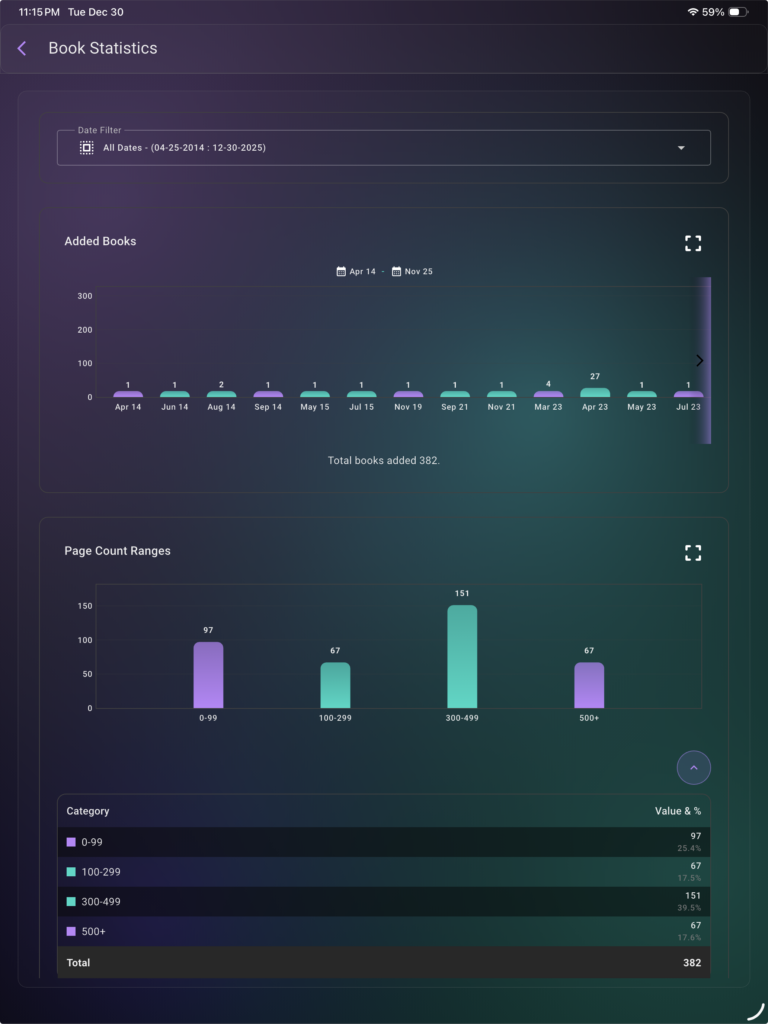
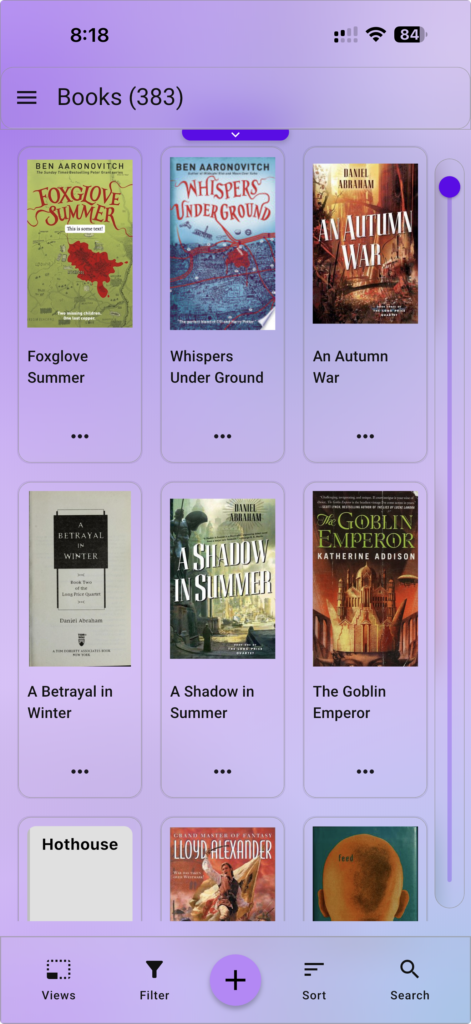
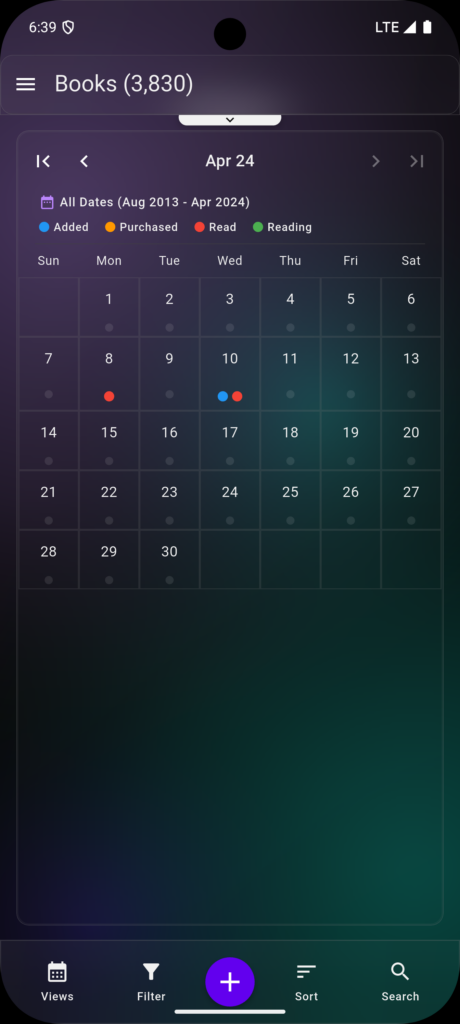
Why Sandi’s List Was Created! Main Books View in Windows (dark theme) Book Scanning in iOS Main Books View in Windows (light theme) Masonry Book View iPad (dark theme) Books Select View macOS (dark theme) Book Statistics View iPadOS (dark view) Small Books View iPhone (light theme) Calendar View Android (dark theme) Word Search Game iPhone (light theme) Cloud Sync View Android (dark theme)

Organize Your World
Sandi’s List was created to fill Sandi’s personal need for an easy-to-access and organize book inventory list app. As an avid reader and collector of books, she needed an easy way to keep track of the books she had on her shelves along with the books she had read.
More importantly, this app lets her easily identify the books she wants and does not yet own.
In short, this app lets you track your library of reading material in multiple ways to fit your needs
- Your Personal Library: Beautifully organized with “Liquid Glass” effects and custom layouts.
- Local & Private: Your library lives entirely on your device — sync directly between your devices over your home Wi-Fi, with no account, no cloud, and no server.
- Tools & Analytics: Track reading speed, pages read, and visualize your history with interactive charts.
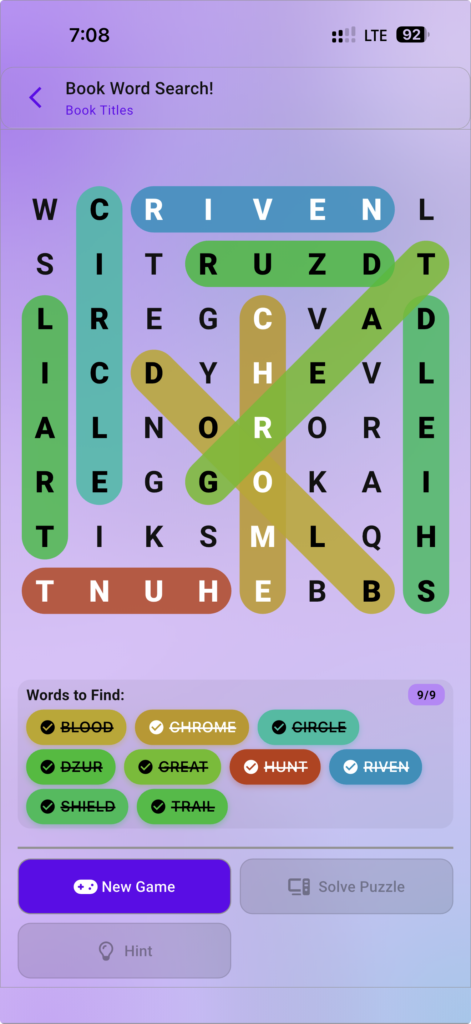
- Built-in Fun: Enjoy generated puzzles like Hangman and Word Search using your own book titles.
A note for Android Users:
Sandi’s List for Android is available as a direct APK download rather than through the Google Play Store. To install: tap the Android (V4 APK) button above, open the downloaded file, and allow installation when your device prompts you. Android may ask you to enable “Install unknown apps” for your browser the first time — this is a normal one-time permission.
Your library and updates work exactly the same as any other version; you’ll simply download new releases from this page rather than through an app store. Existing libraries migrate automatically on first launch.
And of course, AD FREE!
AI Barcode Scanning
Scan ISBN barcodes or use OCR to read printed text directly from the book cover.
Private Device-to-Device Sync
Sync your library directly between your own devices over your home Wi-Fi — two-way merge, no account, no cloud, no internet required.
What’s New in Version 4.0
Version 4.0 is a major evolution — your library now lives entirely on your device, and syncing happens directly between your devices over Wi-Fi. No cloud. No account. No internet required.
Device-to-Device Sync
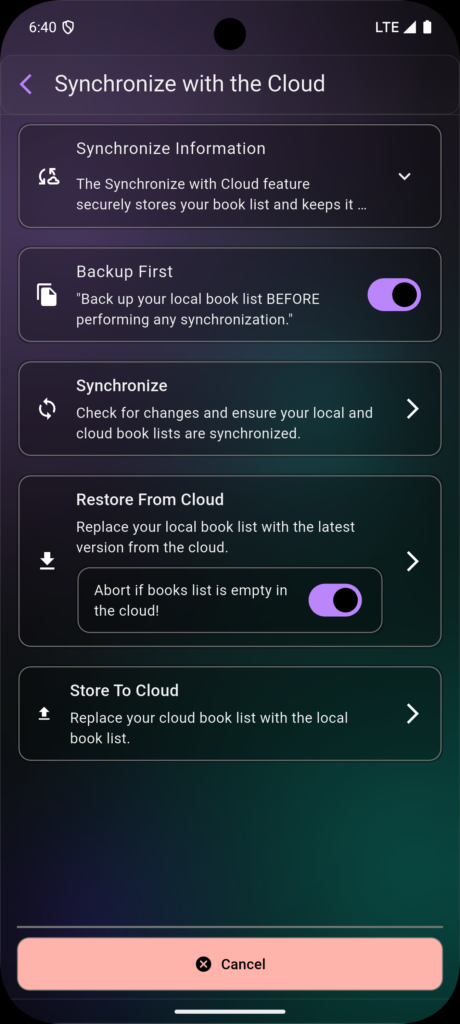
Cloud sync has been replaced with direct, two-way synchronization between your devices over your local Wi-Fi network. Merge both libraries or copy one device onto another — no account or internet needed.
Truly Local & Private
Your library is stored entirely on your device and never leaves it. No server, no account, no cloud. You are in full control of your data.
JSON Export
Your library can now be exported to JSON, in addition to the existing CSV and Excel formats — giving you more flexibility for working with your data elsewhere.
Reading Tracker Fixed
The Reading Tracker now correctly supports logging multiple reading sessions per book — track every time you re-read a favourite.
Changes in 4.0
- Cloud & Accounts Removed — Login, account creation, and passwords have all been removed. Your library stays entirely under your control.
- Local Encryption Removed — Since your data no longer leaves your device, at-rest encryption is no longer needed. Your existing library is automatically migrated when you first open 4.0.
- Google Books Removed — Google now requires an API key for access. Other online search sources remain available.
Version History
- Version 3.0 introduced Cloud Sync, Background Effects, Liquid Glass UI, Calendar View, Masonry View, Rich Text Notes, and Word Search.
- Version 2.0 introduced Cross-Device Cloud Sync and end-to-end encryption.
- Version 1.0 was the first public release in April 2024.
User Guide & Features
🚀 Getting Started
Welcome to Sandi’s List! Here’s a quick map of everything the app can do:
Getting Started
- Understanding the Main Screen — A quick tour of the main library, the bottom navigation bar, and the side menus.
- Backing Up & Syncing Your Data — Learn how to sync your library between devices over Wi-Fi, and make manual backups to protect your data.
Using the App
- How to Add a New Book — Search online, scan barcodes, or import from a file.
- Viewing & Editing Book Details — Edit book info, track reading sessions, and add notes.
- Filtering and Sorting Your Library — Use Filter and Sort to organize your library your way.
Customization & Fun
- Configuring Your App Settings — Themes, fonts, layout, and more.
- Playing Games — Hang Man, Word Search, and Jigsaw Puzzle — all using your own books!
Other Features to Explore
- Custom Views: Switch between grid, calendar, or masonry layout from the Views button.
- Detailed Statistics: See reading and purchase graphs in the Edge Panel.
- Multi-Select Editing: Tap and hold a book to select and edit multiple books at once.
The main library screen is your central hub. From here you can access all of the app’s features.
Bottom Navigation Bar
- Views — Change the visual layout (list, small covers, grid, calendar).
- Filter — Narrow your book list by genre, author, rating, and more.
- Add (+) — The main button for adding new books by searching online or scanning a barcode.
- Sort — Change the display order (title, author, date added, etc.).
- Search — Find specific books already in your library.
Main Menu (☰)
Tap the hamburger icon in the top-left corner to access high-level functions:
- Settings — Configure all app preferences.
- Import / Export Books — Import from CSV, or export to CSV, Excel, or JSON.
- Backup / Restore Database — Manually save or load your entire database.
- Sync with Another Device — Sync your library directly with another device over Wi-Fi.
Edge Panel (Quick Settings)
The Edge Panel gives you quick access to search, sort, filters, and display settings (like Text Size and Theme). It also contains the Statistics and Games sections.
Your book library lives entirely on your device — no cloud account needed. To protect it and keep multiple devices in sync, use device-to-device Wi-Fi syncing and regular backups. You’ll find both in the Main Menu (☰).
Syncing Between Devices
Sandi’s List syncs directly between two devices over your local Wi-Fi — both must be on the same network. Open Main Menu (☰) → “Sync with Another Device” on each device, then follow these steps:
- On the device with the books you want to share: Tap “Wait for a Connection”. It will display an address, port, QR code, and a 6-character code.
- On your other device: Tap “Connect to a Device”, then either scan the QR code or enter the address and 6-character code manually. Tap Connect.
- Choose what to sync:
- Backup First (recommended) — Makes a local backup before anything changes.
- Synchronize — Merges both libraries, keeping the newest version of each book. Best for day-to-day use.
- Restore from the other device — Replaces this device’s library with the other’s.
- Send to the other device — Replaces the other device’s library with this one’s.
Manual Backup
- From the Main Menu (☰), select “Backup Database”.
- A backup file is saved to your device’s Sandi’s List backups folder.
- To copy it somewhere safe, open the in-app Files browser, find the backup, and share it.
Restore from a Backup
- From the Main Menu (☰), select “Restore Database”.
- Select the backup file you wish to restore.
📚 Using the App
You can add books in several ways, all starting from the Add (+) button on the bottom navigation bar.
1. Search Online (Recommended)
- Tap the Add (+) button to open the “Book Search” screen.
- Search by Keywords (title, author, etc.) or ISBN using the tabs.
- Select your Search API (e.g., Google Books).
- Tap “Search”.
- Tap the green plus icon (+) next to any result to add it to your library.
2. Scan Barcode(s)
- Tap the Add (+) button, then tap the Scan icon.
- The “Book Multiple Scan” screen will open.
- Scan Barcode: Point your camera at a book’s barcode. The app finds and adds the book automatically. Scan multiple books in a row.
- Scan Text (OCR): If the book has a UPC barcode instead of an ISBN, tap “Scan Text (OCR)” to read the printed ISBN number directly from the page.
3. Import from a CSV File
- From the Main Menu (☰), select “Import Books”.
- Select your
.csvimport file. - Choose your options for handling duplicates, logging, and auto-filling missing info.
- Tap “Import”.
Exporting Your Library
Export saves a copy of your books to a CSV, Excel, or JSON file.
- From the Main Menu (☰), select “Export Books”.
- Choose your Data Source (default: All Books), Export Directory, Filename, Columns, and Output Format.
- Tap “Export”.
[CURRENT_DATE_TIME] placeholder in the filename is automatically replaced with the export date and time, giving each file a unique name.Edit Book Info
- Tap any book in your library to open its “Book Info” screen.
- Tap the “Edit” button (top-right corner).
- Tap any field to change its content.
- Tap “Save” when finished.
Track Your Reading
- On the “Book Info” screen, tap the “Reading History” section.
- Tap “Add New Reading”, then “Add First Session”.
- Log the Start/End Time, Pages Read, and any optional notes.
- Tap “Save”.
Add Notes
- On the “Book Info” screen, tap the “Notes” section.
- Tap “Add New Note”.
- Give your note a Title and Description, then tap the “Notes” tab to write detailed thoughts in the rich text editor.
- Tap “Save”.
Simple Filter
- Tap the “Filter” icon on the bottom navigation bar.
- Tap any category (Author, Genre, Book Shelves, etc.) to filter by it.
- Your library updates instantly. A “Clear Filter” button appears to return to the full list.
Custom Filters
Build and save reusable filters that combine multiple columns at once.
- Tap the Filter icon → open the “Custom” tab → tap “Add Custom Filter”.
- Switch on the column(s) you want to filter by.
- For each column, choose the values to keep.
- Tap Save. Your filter appears in the Custom tab — tap it anytime to re-apply it.
Simple Sort
- Tap the “Sort” icon on the bottom navigation bar.
- On the “1 Column” tab, tap any field to sort by it instantly.
- Tap the arrow icon next to a field to toggle ascending (A–Z) or descending (Z–A) order.
Custom Sorts
Build and save sorts that order your library by several fields in priority order.
- Tap the Sort icon → open the “AZ Custom” tab → tap “Add Custom Sort”.
- On the Columns tab, switch on each field you want to sort by.
- Open the Sort Order tab. Drag the numbered circles to set priority order, and tap the arrow on each row to flip ascending/descending.
- Tap Save, give the sort a name, and tap Save again.
✨ Customization & Fun
Tap the Main Menu (☰) → “Settings” to customize nearly every part of Sandi’s List.
Book Settings
Control how the app handles book data. The main feature here is Title Sort — ignore common prefixes like “A,” “An,” and “The” when sorting alphabetically.
Display Settings
- Date & Time: Choose your preferred date and time formats.
- Edge Panel: Customize the position and behavior of the quick-access side panel.
- Layout: Fine-tune card spacing, border radius, and tab bar appearance.
- Page & Card Animations: Enable or disable smooth transitions.
- Theme & Appearance:
- Background Pattern — Choose from animated or solid backgrounds.
- Font Family — Select an app-wide font.
- Theme Brightness — Light, Dark, or System.
- Theme Color — Select the primary accent color.
- UI Scale Factor — Change the size of text and UI elements.
Layout Settings
- Card Border Radius: Sharp, Rounded, or Pill.
- Card Vertical Spacing: Compact, Normal, Comfortable, or Spacious.
- Tab Bar Style: Material 3, Contained, or Pills.
- Tab Bar Divider: Show or hide a divider below tab bars.
User Interface
- Card Single Tap Action: Choose what a single tap on a book card does.
- Card Double Tap Action: Choose what a double-tap does.
- Card Context Menu Icon: Show or hide the three-dot (⋮) quick-actions menu on cards.
Both tap actions can be set to: View (read-only), Edit, Delete, Start Selection Mode, or No Action.
Sandi’s List includes three book-themed mini-games. Open the Edge Panel and select your game to play.
Hang Man
- Guess the letters to solve a book title from your own library.
- Each wrong guess adds another part to the Hang Person!
- Tap “New Game” to start over or “Solve Puzzle” if you get stuck.
Word Search
- Find book titles and author names hidden in a grid of letters.
- Words to find are listed at the bottom — tap and drag to highlight a word when you spot it.
Jigsaw Puzzle
- Solve a jigsaw puzzle made from one of your own book covers.
- Drag the pieces from the tray at the bottom onto the puzzle board to assemble the image.